Sunday, 6 December 2020

How to draw a Circle using HTML and CSS?

December 06, 2020 0
How to draw a Circle using HTML and CSS?


It is very easy to draw shapes in HTML web page using CSS, for various applications. This is very common requirement for many UI developers to come up with elegant web pages to suit your client requirements. There are many ways to draw UI component on the HTML web page, there are different framework support different methods to draw. But you can easily draw Shapes on HTML web page using CSS and almost every web browser is capable of rendering without any issue. But if you use some frameworks to design your web UI, there might have some limitations specially for different browsers.


In this example I am going to draw a Circle on your webpage. There are two sections that you need to add to complete this task. First you need to add HTML component, where the object actually resides on the web page. Next is to change the look and feel of the HTML component to see like Circle. We call it as change the style. For that we need apply some style using CSS.

Here is the HTML page.


<html>

  <head>

  </head>

  <body>

    <div id="circle"></div>

  <body>

</html>


You have to define, HTML header and body parts. In the body part, we put a <DIV> to render our Circle shape.


<div id="circle"></div>

We give an ID called “circle” to our <DIV>. We can use this ID to refer our HTML component in CSS code to change the appearance of the component. If you have two HTML components you can give two different IDs and use them to refer in CSS code differently.

 Here is the CSS part.

 
<style>

      #circle {

            width: 50px;

            height: 50px;

            -webkit-border-radius: 25px;

            -moz-border-radius: 25px;

            border-radius: 25px;

            background: red;

          }

    </style>

Under header section of HTML page, you have to define your CSS style code.

<head></head>


#circle is referring to HTML DIV with ID “circle”, and apply above style to that component only. That is why we need to specify the DIV ID here.

Then we give height and width to 50 pixels, set border radius to 25 pixels and change background color of the circle to red. You can change these properties as you wish to change the look and feel of your circle.


Complete code:

 
<html>

  <head>

    <style>

      #circle {

            width: 50px;

            height: 50px;

            -webkit-border-radius: 25px;

            -moz-border-radius: 25px;

            border-radius: 25px;

            background: red;

          }

    </style>

  </head>

  <body>

    <div id="circle"></div>

  <body>

</html>

Above code generate, A HTML page with red circle.


A HTML page with red circle

Thursday, 3 December 2020

React Native Hello World App

December 03, 2020 0
Follow my blog with Bloglovin


Today we are going to develop our first React Native application. In this tutorial I am going to directly jump into coding without explain code much. You don’t need to know all sort of technical jargon to write your first React Native application.


This application just prints “Hello World” text on your phone screen. This application can run on Android or iOS device without any code change. This is the power of React Native. You can run your application both Android or iOS devices with minimum code change and most of the code common for both platforms.


Before write any code you need to setup your development environment, if you haven’t done yet. You can get all the information here to setup your React Native Development Environment.


Creating a new application

To create new application, you have to use React Native built-in command line interface. You can access it without installing anything globally using npx, which ships with Node.js. Let's create a new React Native project called "HelloWorld":


npx react-native init HelloWorld


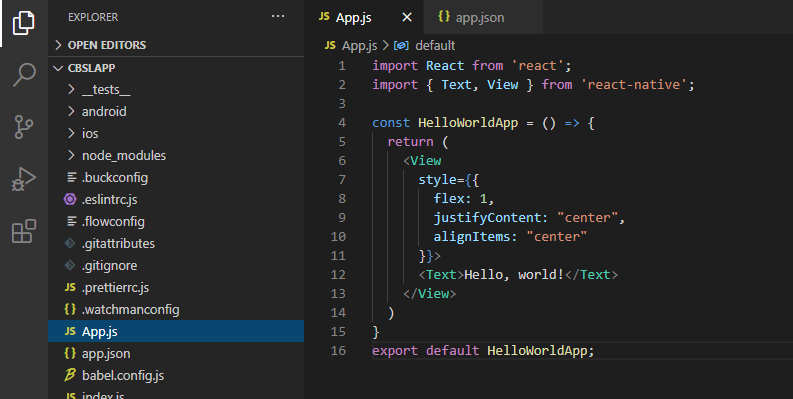
You need to modify App.js file as below to print “Hello World” on your phone screen.


import React from 'react';
import { TextView } from 'react-native';

const HelloWorldApp = () => {
  return (
    <View
      style={{
        flex: 1,
        justifyContent: "center",
        alignItems: "center"
      }}>
      <Text>Hello, world!</Text>
    </View>
  )
}
export default HelloWorldApp;


First two lines import "react" and "react-native" components. Then write simple function called "HelloWorldApp" and it just return "Hello, world!" text.


Finally, default export of "HelloWorldApp" function for rendering.


Next step is to run your application. Below command run your application either on your emulator or mobile device. If you want to test your application on the emulator you have to load your emulator. If you want to test your application on your phone you have to connect your phone via USB port to computer and run below command.

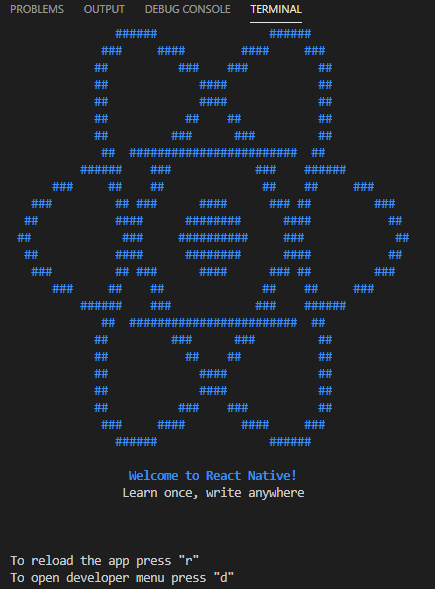
npx react-native start


This will load metro server.


Then run your application, run below command.


npx react-native run-android


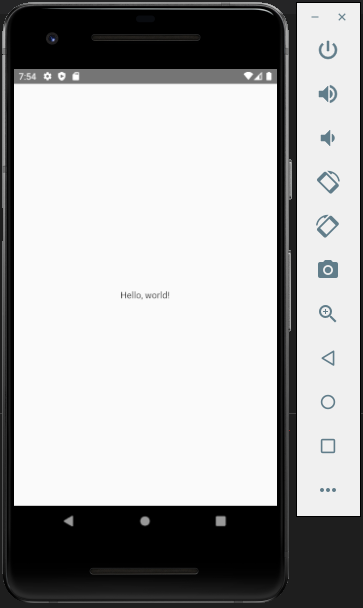
Now you can see your code is running like this.


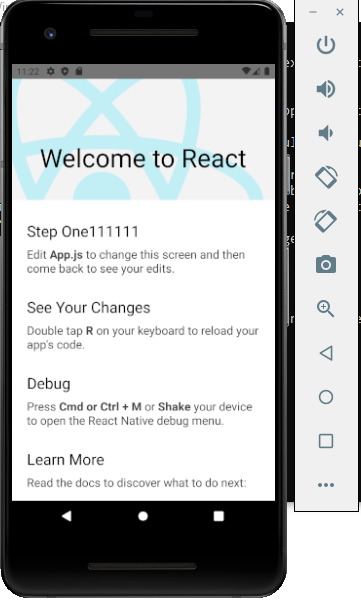
Now modify your code and see how the changes are reflecting. This is very simple code, but good starting point. Next we try to develop some basic React Native Calculator application.


Tuesday, 1 December 2020

Dive deep into Spring Boot Architecture

December 01, 2020 0


Spring Boot is built on top of the Spring framework. Spring Boot helps you to build production grade application easily.

Spring Boot has a layered architecture. Which means each layer directly communicate with it below or upper layer.


Spring Boot layers


  • Presentation Layer

v  Presentation layer is having a responsibility of handling HTML requests and authenticate the requests. It also translates the JSON parameters to objects

  • Business Layer

v  Its handles all the business logics validation and authorization.

  • Persistence Layer

v  It contains all the storage logic like database queries and also helps to translate business object into database rows

  • Database Layer

v  The database layer consists of the database such as MySQL, PostgreSQL, MongoDB, etc. All the database related operations like CRUD (Create, Read/Retrieve, Update, and Delete) are performed in this layer.

Spring Boot layers
Spring Boot layers

Spring Boot Flow Architecture 

Spring Boot Flow Architecture


·         A client makes the https request (GET/POST/PUT)

·         Then it goes to controller maps it with appropriate method and call business logic if required

·         Business logic is performed in the service layer which might be performing the logic on the data from the database which is mapped through JPA with model/entity class


Search: spring boot deep dive,spring security architecture,how spring security works in spring boot,spring boot security and oauth2 in depth from scratch,spring boot security tutorial step by step,spring security amigoscode


Saturday, 28 November 2020

Spring Boot for Beginners

November 28, 2020 0
  
spring boot for beginners example,spring initializr,spring tutorial,spring boot application,spring boot example,spring boot interview questions,spring boot initializr,java spring boot

What is Spring Boot

Spring boot build on top of the Spring framework. There is no requirement on having lot of configurations when you use Spring Boot. Its use It uses convention over configuration software design paradigm. Therefore, it reduces lot of effort of developers.

What you need in your computer

  • Java 1.8
  • Maven 3.0+
  • Spring Framework 5.0.0.BUILD-SNAPSHOT
  • An IDE (Spring Tool Suite) is recommended.

Why you choose spring Boot as your development framework.

  1. Spring Boot is a framework which provide default configurations and annotation that you can create project simply.
  2. Reduce development time and increase the productivity.
  3. Very easy to integrate with Spring JDBC, Spring ORM, Spring Data, Spring Security etc.
  4. It provides Embedded HTTP servers like Tomcat, Jetty etc. to develop and test our web applications very easily.
  5. Its provide lot of plugins to implement various features.


Spring Boot Features

  • Web Development

We can easily create web html application with embed servers like tomcat and jetty. We can use the spring-boot-starter-web module to start and run the application quickly.

  • SpringApplication

It is a class which help to bootstrap the spring applications

public static void main(String[] args)
{
       SpringApplication.run(ClassName.class, args);
}
   
  • Application events and listeners

Spring Boot uses events to handle the variety of tasks. It allows us to create factories file that is used to add listeners

  • Admin features

By using spring.application.admin.enabled property you can enable admin features.

  • Externalized Configuration

The application uses YAML files to externalize configuration. With this feature we can support our app to run in multiple different environments.

  • Properties Files

Springboot user application property file where we can define server port and any other properties that you can change externally

  • YAML Support

It is an alternative for the property file and spring boot application support it by default.

  • Logging

It is providing common logging for all the internal login.

  • Security
Spring Boot has separate security framework which you can use to authenticate and authorize users.
Spring Boot security framework


Search:spring boot for beginners example,spring initializr,spring tutorial,spring boot application,spring boot example,spring boot interview questions,spring boot initializr,java spring boot

Thursday, 26 November 2020

Adding styles to your Angular App

November 26, 2020 0


  How to set up Angular environment

             How to create Angular project

             How to generate component and define routings in Angular


Let’s make our app little bit interactive.

You can put all your common style of your application to style.css file which applies globally.

Copy and paste below code in your style.css file

/* You can add global styles to this file, and also import other style files */

@import url('https://fonts.googleapis.com/css?family=Nunito:400,700&display=swap');

$primary: rgb(216, 172, 78);

body {

    margin: 0;

    font-family: 'Nunito', 'sans-serif';

    font-size: 18px;

}

.container {

    width: 80%;

    margin: 0 auto;

}

Monday, 23 November 2020

How to generate component and define routings in Angular

November 23, 2020 0


Things we learned so far

How to set up environment

          How to create Angular project


Today we will understand how you can create component using Angular CLI and how you can define routing to each component.

You can run below command to generate the component using Angular CLI

CD <<folder where you want to have the component>> 

Run ng g c <<component name>>


ng g c <<component name>>

Angular CLI will create for files and also update the app.module.ts file by adding new entry to the import section.

Next we will create the component for home page.

Sunday, 22 November 2020

Create Your First Angular Application - My Flower Store

November 22, 2020 0


Last tutorial you have learned how to set up your environment to work with Angular. In this tutorial you will learn how create your first Angular application.

Steps to create the Angular Project

Open command prompt Run 

ng new <<your app name>>

Once you run the above command it will ask you to select the type of css that you need to use.

Then Angular CLI will install necessary npm packages and other dependencies.

ng new my-flower-store command


Within a minute or two CLI will create the project with all the necessary features that you can run your app.

Initial app contains

  • A new workspace, with a root folder named my-flower-store (project name you gave with ng new command)
  • An initial skeleton app project, also called my-flower-store
  • An end-to-end test project (in the e2e subfolder).
  • Related configuration files.

Setting up the react native development environment

November 22, 2020 0


Setting up the react native development environment

This tutorial I am going to focus on how to install and build your first React Native application.


There are two methods you can follow to develop React Native app. If you are very new to mobile development and not familiar with setting up mobile development environment, I would suggest to start with Expo CLI. Expo is a set of tools to build React Native application. It has may features; you have to select suitable features to develop your app in minutes. You need only a recent version of Node.js and a phone or emulator. If you want to test your React Native application on your web browser before installing any tools, you may use Snack.


If you are familiar mobile developer from other languages and want to try out React Native, you may try out React Native CLI. For that you need to install either Xcode for iOS or Android Studio for Android OS.


If you are a beginner, my personal suggestion is to go for Expo CLI and familiar with the React Native features and concepts. Actually, using Expo CLI, you can develop production level application. But when you move forward there might have some limitation when your application grow to access very hardware specific features. For example, if your application wants to read NFC card, get some data from Bluetooth enabled devices…etc you might want to go for React Native CLI rather Expo CLI. In my own experience I have developed Expo application for many projects which read mobile device network connection, camera, Wi-Fi connection and many more. Most important feature is if you write your Expo app in a such way that you may use same code for iOS and Android OS as it is. But in React Native CLI most of the time you need to some slight modifications to build for iOS and Android OS.


Method 1: Expo CLI


Prerequisite is to install Node 12 LTS or greater on your machine. You can use npm or yarn command to install the Expo CLI command line utility:


npm install -g expo-cli

 or

yarn global add expo-cli


Saturday, 21 November 2020

Introduction to Angular

November 21, 2020 0
Introduction to Angular


Google release AngularJS in year 2010. It got popular immediately because it made static HTML interactive. However, with other latest web development technologies developers started to see drawbacks of AngularJS.

Google then start to rewrite framework again and decided to shift from Java Script to Type Script. Type Script is helpful to avoid drawback of AngularJS

Angular 2 was then introduced in 2016 and it evolves up to Angular 9.


How to install Angular


To setting up the angular framework you need 

1. Node

To install node go to official site of node to download the version you need (nodejs)

Run the downloaded Node.js .msi Installer 

If you want to know the node version installed in your computer run following command

 node -v


node -v

Thursday, 19 November 2020

Android: How to launch android emulator from command line or batch script?

November 19, 2020 0


Many Windows based Android developers are facing difficulties in running Android Studio on Windows machines due to lack of performance issues. But if you are developing mobile application using language like React Native you don’t actually need to work on Android Studio. But most of the time you have to use Android Emulators to test your application. If your windows machine does not have at least 16 GB of RAM you always face severe performance issue while running Android Emulators.


One solution to this issue is you can use your mobile phone to test react native application without running on Android Emulators. For that you only need to run Metro server on your PC and test application run on your mobile phone. But this method has drawbacks you have only one platform to test your application. If you want to test your application on multiple platforms you have to use several Emulators with different Android versions and architectures.


Another solution is without load your Android Studio if you can use Android Emulators alone that will give better performance. For that you can use command line to load Android Emulators.